

Watching movies in 4K Ultra HD delivers unmatched detail, vibrant colors, and immersive clarity. If you’ve invested in a 4K Blu-ray collection and want to enjoy it on your computer, you might be surprised to find that you can’t play 4K Blu-ray on PC as easily as you might think. There are strict hardware, software, and digital rights management (DRM) limitations standing in the way.
In this guide, we’ll break down exactly how to play 4K Blu-ray on PC, what you’ll need, the best software options, and even an alternative method to rip your discs for smoother playback.
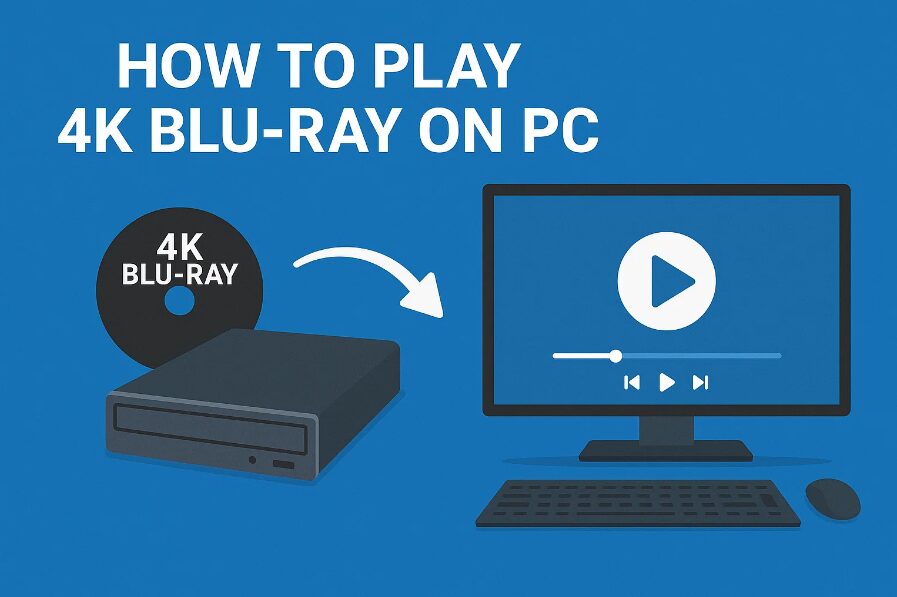
Part 1: Why You Can’t Play 4K Blu-ray Directly on PC
Despite how advanced modern PCs have become, 4K Blu-ray playback remains a niche use case that requires specific components. Here’s why:
Hardware Limitations
One of the biggest roadblocks is that standard Blu-ray drives can’t read 4K UHD Blu-ray discs. While they work fine for standard and even regular Blu-ray formats, 4K UHD Blu-rays use different encryption and disc structures.
To overcome this, you’ll need a UHD-friendly Blu-ray drive—either internal or external—that supports the unique requirements of 4K UHD discs.
Software Restrictions
Even if you have a compatible drive, your operating system won’t automatically play 4K Blu-rays. Neither Windows nor macOS natively supports 4K UHD Blu-ray playback, largely due to the DRM (Digital Rights Management) and AACS 2.0 encryption technology used to protect the discs.
This means you’ll need third-party software capable of decrypting and playing the disc content.
System Requirements
Playing 4K Blu-rays isn’t just about the drive or software—you’ll also need a robust PC setup:
- A 4K UHD display or monitor.
- A powerful CPU and GPU, ideally from Intel/NVIDIA or AMD.
- An HDCP 2.2-compliant HDMI connection (this is essential for secure video transmission).
Without these, even the best software won’t help you play 4K Blu-ray on PC effectively.
Part 2: What You Need to Play 4K Blu-ray on PC
Now that you understand the limitations, here’s what you actually need to get everything working properly.
UHD Blu-ray Drive
Invest in a certified UHD Blu-ray drive. These drives are specially built to read 4K UHD discs and can either be:
- Internal SATA drives (for desktop PCs).
- External USB 3.0 drives (for laptops or compact setups).
Brands like LG, Pioneer, and ASUS offer popular UHD-compatible models.
Playback Software
Once your hardware is ready, you’ll need a 4K Blu-ray player software that supports:
- 4K UHD playback
- HDR10 / Dolby Vision
- Dolby Atmos / DTS:X
- Decryption of DRM-protected discs
- Region-free playback support
Some of the best 4K Blu-ray player software include:
- Leawo Blu-ray Player (Free and supports a wide range of discs)
- CyberLink PowerDVD (Premium and feature-rich)
- DVDFab Player 6 (Advanced playback and HDR support)
If you’re looking for a region free 4K Blu-ray player software, Leawo and DVDFab are solid choices with wide codec support and decryption features.
Updated Hardware Setup
Make sure your PC includes the following:
- 4K-capable GPU: NVIDIA GTX 1050 or higher, or AMD Radeon RX 500 series or higher.
- HDCP 2.2-Compliant HDMI Cable & Monitor: This ensures compatibility with DRM-protected content.
- Windows 10/11 64-bit OS: Required by most Blu-ray player software.
Part 3: Step-by-Step Guide to Playing 4K Blu-ray on PC
Let’s walk through how to set up and start playing your 4K Blu-ray discs on a PC.
Step 1: Install a UHD Blu-ray Drive
- Purchase and install an internal UHD Blu-ray drive (if using a desktop) or plug in an external UHD drive via USB.
- Install any necessary drivers or firmware updates from the manufacturer.
Step 2: Download and Install 4K Blu-ray Player Software
- Visit the official site of Leawo Blu-ray Player.
- Download and install the free software.
- Launch the program and allow necessary permissions.
Step 3: Insert the 4K Blu-ray Disc
- Insert your UHD disc into the drive.
- Open your Blu-ray software.
- Use the “Open Disc” or “Load Disc” function to detect and launch the movie.
Step 4: Adjust Playback Settings
To get the best experience:
- Enable HDR (if supported by your display and GPU).
- Set the video aspect ratio to match your screen.
- Use audio passthrough options to stream Dolby Atmos or DTS:X audio to your AV receiver or soundbar.
Now you’re ready to play 4K Blu-ray on PC with crystal-clear visuals and cinematic sound.
Part 4: Alternative: Rip 4K Blu-ray for Easier Playback
Sometimes, the playback setup can be too restrictive or complicated. In such cases, ripping 4K Blu-ray discs to digital formats may be a better option.
Why Rip Instead of Play Directly?
- No need to load the disc each time.
- Easier to play via any media player or stream to devices like TVs, smartphones, or tablets.
- Store your entire movie collection digitally.
Tools for Ripping
To rip 4K UHD Blu-ray discs, you’ll need dedicated software. Some popular options include:
- Leawo UHD Ripper
- MakeMKV (Free for basic use)
- DVDFab UHD Ripper
These tools can bypass DRM protection and convert your disc into formats like MKV, MP4, or ISO.
How to Rip a 4K Blu-ray Disc
- Insert the UHD Blu-ray into your drive.
- Launch your ripping software (e.g., Leawo UHD Ripper).
- Choose the output format – MKV is great for preserving quality.
- Click “Start” and let the software rip the disc.
- Once done, you can play it using any video player (e.g., VLC, MPC-HC, or Leawo Blu-ray Player).
This method simplifies your media setup and ensures your discs last longer, free from wear and tear.
Conclusion
While the process isn’t as plug-and-play as streaming services, with the right setup, it’s absolutely possible to play 4K Blu-ray on PC and enjoy a theater-like experience at home. Here’s a quick recap:
- You can’t play 4K Blu-rays on a PC without compatible hardware and software.
- You’ll need a UHD Blu-ray drive, powerful PC, and 4K Blu-ray player software like Leawo Blu-ray Player.
- Alternatively, rip 4K Blu-rays into digital files for easier playback across devices.
Whether you choose direct playback or digital conversion, now you have everything you need to unlock the full potential of your 4K Blu-ray collection on PC. Want to dive deeper? Check out this in-depth guide on how to play 4K Blu-ray on PC.